Editarea Online help: Graphic options
Graphic options
You can access the site options panel from the administration.
Logo
Logo settings
You can set the logo appearance in these ways:
  • Not visible
  • Horizontal
  • Square
  • Vertical

Margin
You can choose to add some margin to your logo.

Change
Allows you to upload an image and change the logo of your site.
Moreover, via the "crop" and "full-size image", you can choose wheter to show the entire image or only a part of it as your logo.
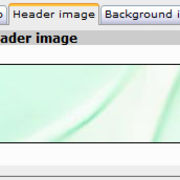
Header image
The header image is shown in the header of every page.

Via the "crop" and "full image" you can decide wether to show the entire uploaded image or just a part of it.
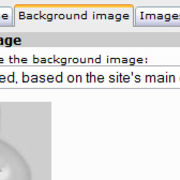
Background image
From here you can upload (via the "choose/change" button) a background image for tour site, and decide wether to show all of it or just a part of it via the "crop" and "full-size image".

Inoltre, potrai decidere se essa deve essere mostrata con i suoi colori originali, o se deve essere ricolorata in base al colore principale del tuo sito, in modo da ottenere una maggiore coerenza cromatica con le tue pagine.
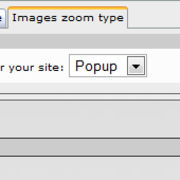
Images zoom type
From here you can choose the enhancing method for the images of your site:

  • popup: clicking on an image opens a new window with the enlarged image
  • gallery: image is enlarged and you're given the possibility of browsing the different images on the page.
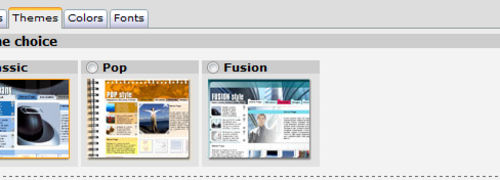
Themes
From here you can choose the base graphic style for your site among
classic, pop and fusion.

Remember: changing the theme doesn't change the site's structure and its content, but only modifies the graphic appearance.
Colours
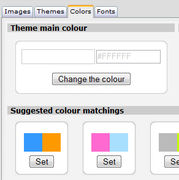
From here you can choose the main colour on which your site will be based, and the colour for the objects set as "enhanced". Change the colour by clicking on it and choosing one from the palette.

You'll also find some suggested colour matchings ready for use.
Fonts
From here you may change the font size for your site: small, medium or large.


  How it works
| Free trial | Prices
made in EditArea